 Help Center Doctor
Scan
The scan builds the working copy every other screen uses. It reads, it never writes.
Starting a scan
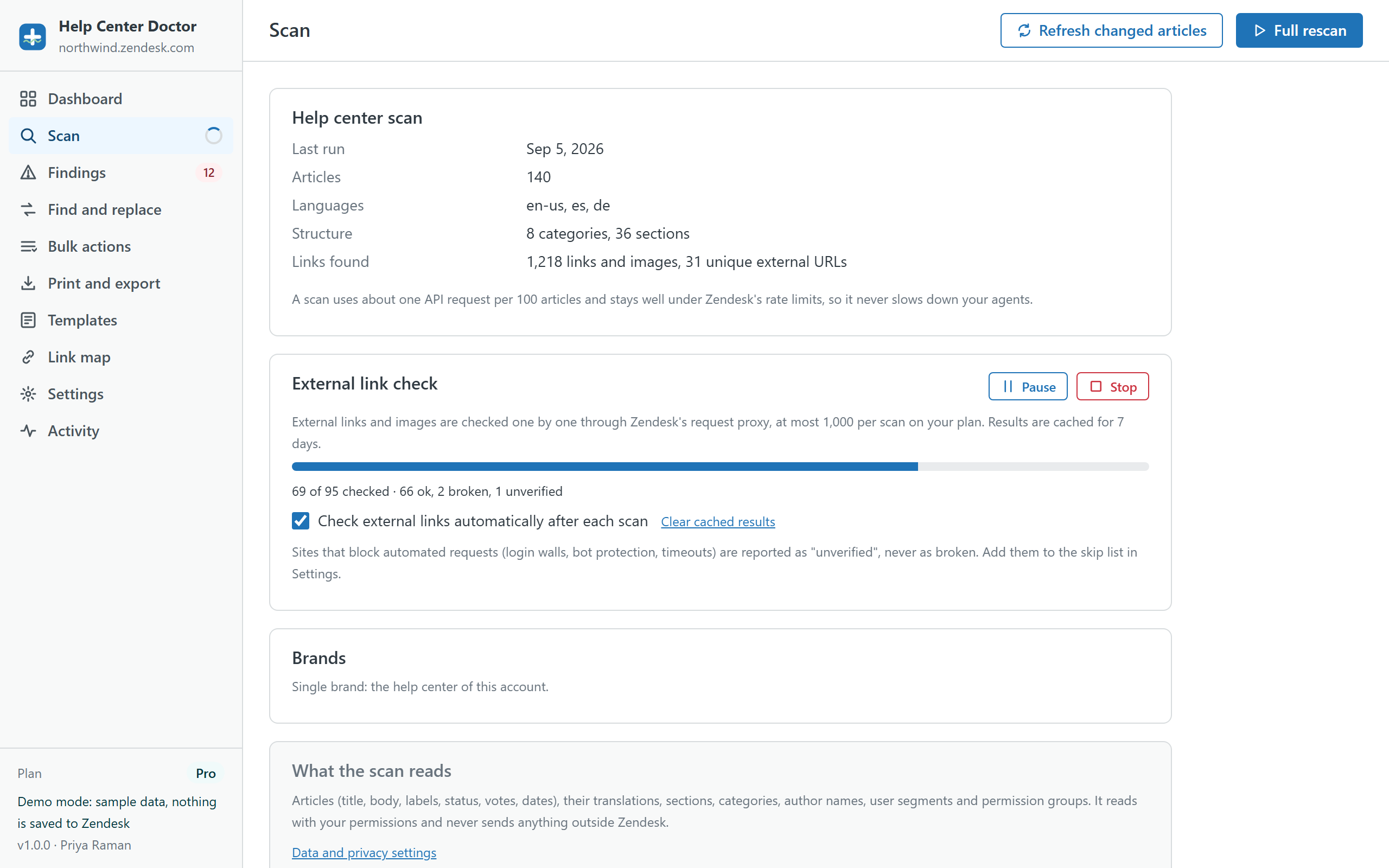
On first open, click Scan now on the welcome screen. Afterwards the Scan screen offers two buttons:
- Refresh changed articles reads only the articles edited since the last scan and re-runs the rules. Use this day to day.
- Full rescan reads everything again. Use it after big restructures or when sections and categories changed.
You can stop a scan at any time; findings then show the previous scan, if there was one. Keep the tab open while it runs.
What the scan reads
Articles (title, body, labels, status, votes, dates) with all their translations, sections, categories, author names, user segments, permission groups and the list of brands. Everything is requested from the Zendesk API with your own permissions. Items your role cannot read (for example user segments on some roles) are skipped and the affected rules adapt.
How long it takes
Translations are fetched together with the articles, so a scan uses about one API request per 100 articles. Requests go through a queue with a rolling budget well under Zendesk's rate limits and slow down automatically if Zendesk asks. A few thousand articles take a minute or two.
Plan limits
- Free: the first 200 articles in the default language. The dashboard says when a help center was truncated, and whole-help-center rules (missing targets, empty sections) are skipped because they would give wrong answers on a partial scan.
- Pro and Business: every article in every enabled language.
External link check
Internal links and images are checked against the scanned index immediately. External URLs are checked one by one through Zendesk's request proxy, at most 50 (Free), 1,000 (Pro) or 3,000 (Business) per scan. Results are cached for 7 days, so a re-check only spends budget on new URLs. Tick Check external links automatically after each scan to run it every time, or start it by hand with Check links now. You can pause, resume and stop it.
Only a definite "not found" answer (HTTP 404 or 410) counts as broken. Sites behind login walls or bot protection, timeouts and server errors are reported as could not be verified and never as broken. Add such hosts to the skip list in Settings so they are not checked again.
Brands
By default the app scans the help center of the brand your Support session runs on. If your account has several brands with a help center, the Brands card on the Scan page lists them: pick one and the scan reads that help center with your own permissions. Zendesk keeps a separate sign-in per brand, so another brand shows a Connect link the first time; it opens a Zendesk page in a new tab that signs you in to that brand without a password when you are already signed in. Come back, click Check again, then scan. Results, the link cache and ignored findings are kept per brand.
Where the scan is stored
The working copy is kept in your browser's storage so re-scans and every other screen are fast. It is never sent anywhere. Clear it from Settings, Data and privacy, or by uninstalling the app and clearing site data in your browser.
Next: Findings.