 Help Center Doctor
Link map and safe delete
Archiving an article that other articles link to creates broken links the moment you click. The link map shows you those links first. It needs Pro or Business.
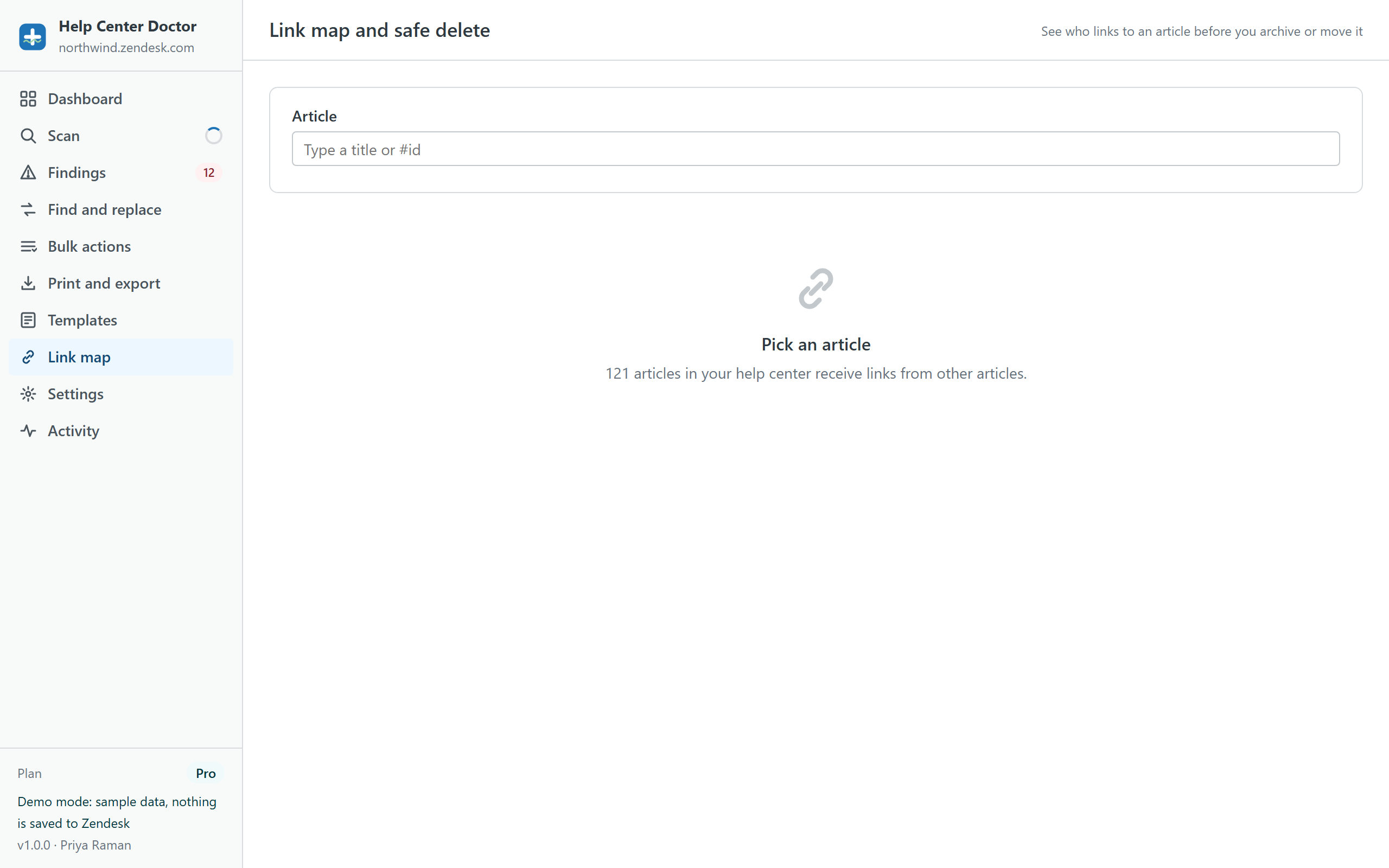
Pick an article
Type a title or #id. The screen then shows:
- Incoming links: every scanned article that links here, with the linking article, the link text and the address. If nothing links to the article, it is marked safe to archive.
- Outgoing links: the links inside this article, for reference.
Redirect links before archiving
Select the incoming links and click Redirect selected links. Choose the replacement article and the app rewrites those links in the linking articles, through the normal apply dialog with preview, snapshot and undo. Then click Archive article, acknowledge that undo does not cover archives, and the article is archived without leaving a dead end.
Moving instead of archiving
Moving an article to another section keeps its id and its links working, so the link map is only a check. Use Bulk actions to move articles.
Notes
- The map covers links found in scanned articles. On the Free plan (200 articles) it may be incomplete; the app tells you when the scan was truncated.
- Links from outside your help center (your website, emails, tickets) are not visible to the app. Consider a redirect rule in Guide for articles that were linked externally.
- Archived articles can be restored in Guide under Manage articles, Archived.